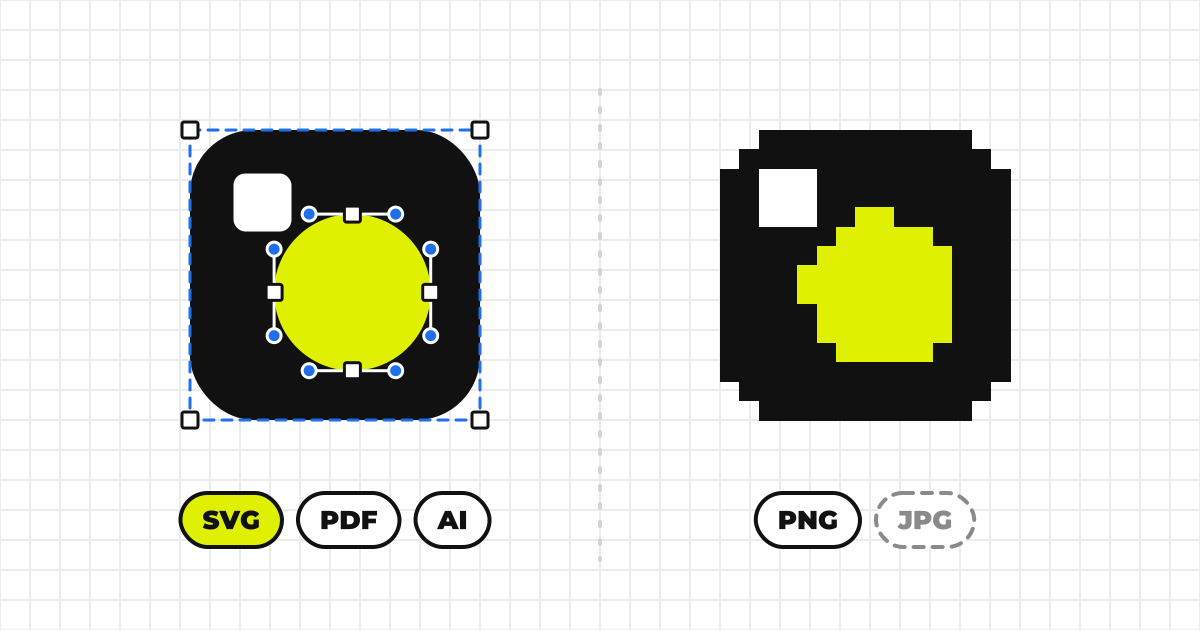
File formats7 min read
Logo File Formats: SVG, PNG, PDF and AI
SVG, PNG, JPEG, WebP, PDF, AI and EPS compared in a table: which to use on the web, in slides and in print, why SVG text breaks, and which formats to supply when you publish a logo.
User Guide — For Brand Owners
From registering your organization to adding, editing, and publishing logos and brand colors — the steps for anyone managing a brand on MediaKit™.
The screens in this guide are the actual parts of the MediaKit™ dashboard, running here. Drop files, pick colors, try them. Files go nowhere and nothing is saved. The samples use brand assets from our own products: MediaKit™, Werp™, Creators Team and Drone24™.
MediaKit™ is a platform for managing a company's or organization's branding assets — logos, corporate colors, and more — in one place. You can upload logo assets of various types in the file format you need. Instead of digging through cloud storage for a share link or asking your in-house designer every time, you can share your logos and corporate colors just by saying: check MediaKit™.
Getting a brand published takes three things.
Once registered, you land on the organization's dashboard. The tabs along the top switch between its parts.
Configure each item from the Settings tab, then click Save.
For publication settings, see Publication settings on this page.
The thumbnail shown on search and browse listings is your dedicated workspace image if you've set one, otherwise your first logo by default once you've registered at least one -- pick a specific logo instead under Listing Thumbnail in Settings.
Open the Logos tab. A logo is registered just by dropping its files.
This is only shown on your own organization's page.
This is only shown while signed in.
Drop your logo files into this box, all at once. Formats of the same logo (SVG and PNG, say) are kept together, and each one’s style and theme (light/dark) is read from the artwork.
SVG · PNG · PDF · AI · PS · XD · JPG · WEBP · GIF · BMP
Visitors can then download each logo by format from the public page, and the clear-space and misuse figures draw themselves.
Press “Try it with sample files” in the sample above to open this screen.
The files gather into one logo per mark on their own: matching names (symbol-light.png and symbol-light.svg), and artwork that looks the same even when the names differ.
The style and theme are filled in from the image. Fix only what's wrong.
Finally, click Register to add every row as a logo.
Nothing is uploaded to MediaKit™'s servers until you review the rows and click Register -- closing the dialog first discards everything.
From the Logo tab, click Add new logo at the top right.
This is a sample, so nothing is saved

A layout made up of only the symbol mark.

A layout made up of only the text, or a stylized version of it.

A layout with the symbol and text stacked vertically.

A layout with the symbol and text arranged horizontally.
None of the above.
A logo used on light backgrounds, such as white or light gray.

A logo used on dark backgrounds, such as black, dark gray, or navy.
Doesn't depend on how light or dark the background is, or doesn't fit the two categories on the left.
In the Logo tab's table, click the pencil icon at the right end of the logo's row.
This is only shown while signed in.
In the Logo tab's table, click the trash icon at the right end of the logo's row.
This is only shown while signed in.
Clicking the trash icon opens a confirmation popup. Click Confirm to delete it.
This action cannot be undone.
Drag the ⋮⋮ handle at the left of a row to reorder logos, or drag a group's own handle to move the whole group -- this is the order visitors see on your public page too.
Each row also has its own group dropdown for moving one logo at a time. To move several at once, check their boxes on the left (Shift-click to select a range), then use the toolbar that appears above the table to set their group or delete them together.
Click a group's name in its section header to rename it. Renaming an automatically-formed group (grouped just because the logos share a name) turns it into an explicit one.
After you add a logo (one at a time or in bulk), MediaKit™ looks at its artwork and offers to register the colors it finds (up to 8) -- skipping pure black and white, and anything close to a color you've already registered -- with a name pre-filled from a set of reference color names, all pre-checked. Uncheck any you don't want, edit names as needed, and click Register.
This is only shown on your own organization's page.
A Save button appears as soon as the swatch is new or edited, but stays disabled until you give it a name -- click it once it's active to add the color.
Change a color's name, HEX code, or color the same way as when adding one -- directly on its swatch, no popup involved.
This is only shown while signed in.
Click the trash icon at the right end of the color's row.
This is only shown while signed in.
Clicking the trash icon opens a confirmation popup. Click Confirm to delete it.
This action cannot be undone.
Visitors can copy your registered brand colors using the steps below.
Your organization's page can be set to one of the following three publication states.
Choose on the Settings tab, under visibility, and press Save.
Even if you write nothing, these figures are drawn from the logos you registered.
Shows the required clear space around a logo — an area where no other elements should be placed.
Because logo size varies widely across media, clearance is often measured using a part of the logo itself as the unit, rather than an absolute unit like px or mm.
MediaKit™ lets you choose from the following units.
Keep this protected area around the logo free of any other elements (some figures are auto-generated by MediaKit™).

Logo width0.1 × logo width
Logo height0.5 × logo height
Pixel24px
The smallest size each style should be used at. Where the owner hasn't set one, MediaKit™ shows a reference value instead. px is for screens and mm is for print; they are set separately, not converted from one another.
 24px / 8mm
Symbol
 96px / 24mm
Horizontal Set
Derived from the theme each mark was registered with (for light / dark surfaces). Check colored surfaces on each logo card's Brand tab.
White
Black
Standard misuse rules that apply to brand logos in general (reference figures auto-generated by MediaKit™).
Do not rotate
Do not distort
Do not recolor
Do not add shadows
Do not obscure
Do not place on low-contrast backgrounds
When using a logo published on this platform online or in print, please keep the following in mind.
Creators Team Inc., the company operating this platform, accepts no responsibility for any damages arising from the use of this platform.
All of the following default to the automatic pick or shown state -- an org that never touches the Guidelines tab still publishes something sensible.
If you believe content on this platform falls under any of the following, please report it to us using the Report button at the top right of the organization's page.
Open the "Members" tab and click "Leave organization" at the bottom of the page.
This is only shown while signed in.
Confirm by clicking "Leave" -- you'll lose access to this workspace. You can only rejoin if a member invites you again.
The sole administrator can't leave -- make another member an admin first, or delete the workspace instead.
Open the "Settings" tab and scroll to the "Danger zone" at the bottom.
This is only shown while signed in.
Type the workspace's URL to confirm, then click "Delete Organization."
Everything this workspace owns -- logos, colors, guidelines, photos, members, and invitations -- is deleted along with it.
This action cannot be undone.
Click "Delete account" at the bottom of your dashboard's top page.
This is only shown while signed in.
Confirm in the dialog by clicking "Delete anyway" -- your account is permanently deleted.
You can't delete your account while you still belong to a workspace -- leave or delete every workspace first.
This action cannot be undone.
SVG, PNG, JPEG, WebP, PDF, AI and EPS compared in a table: which to use on the web, in slides and in print, why SVG text breaks, and which formats to supply when you publish a logo.
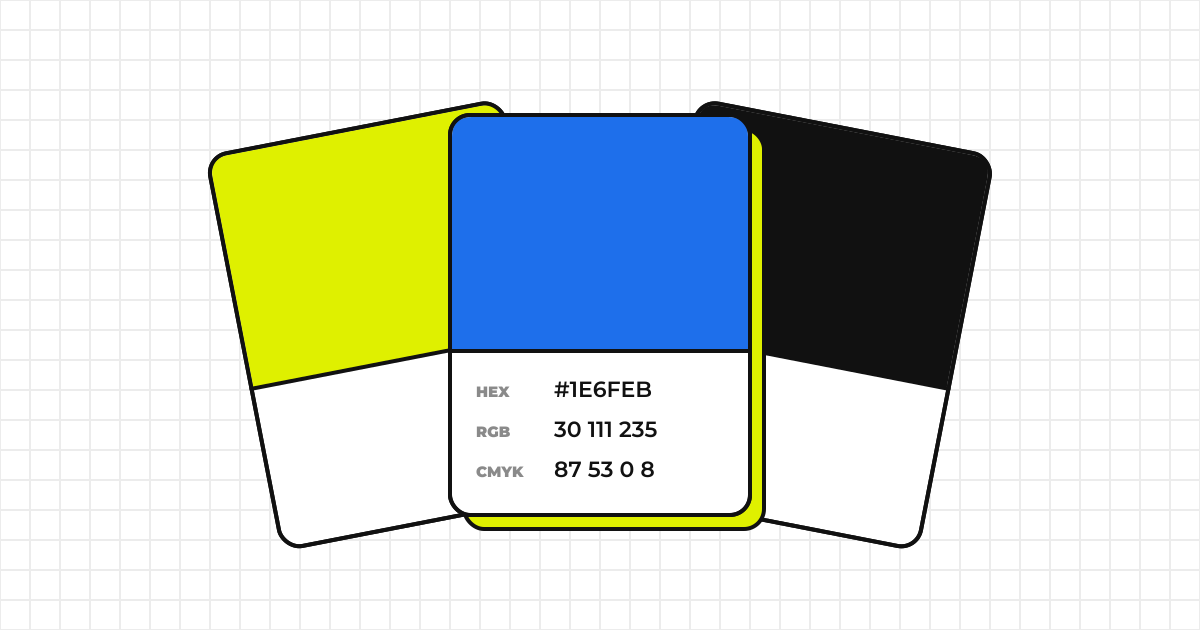
How HEX, RGB, CMYK and spot colors (DIC, PANTONE) differ and when to use each. Why RGB can’t be converted to CMYK exactly, how to write colors in guidelines, and how to check whether a color works for text.
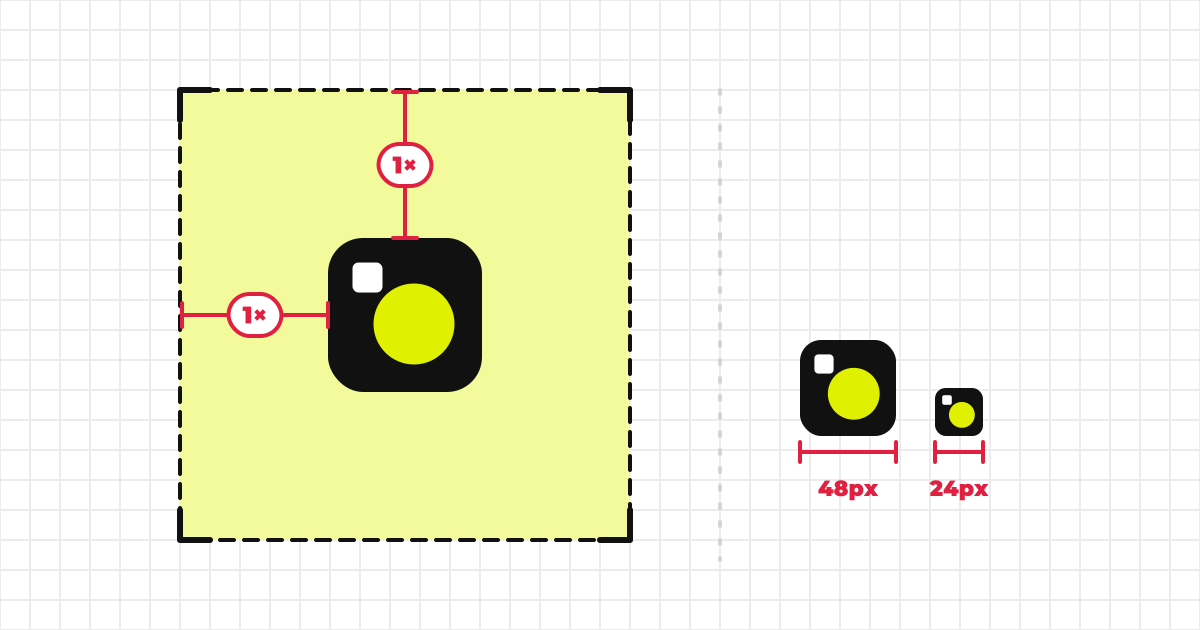
How to decide a logo’s clear space and minimum size and write them down: choosing the unit, measuring at real size, setting screen px and print mm separately, and wording people will follow. Written for whoever publishes the logo.